Installing Lucky Orange on Shopify
There are two ways to install Lucky Orange on Shopify: automatically through the Shopify App Store (recommended), or manually by placing a tracking code yourself. This doc covers both.
Are you on Shopify Plus? Click here for Shopify Plus-specific installation instructions, which also cover checkout page tracking.
Automatic installation (recommended)
- Log into your Shopify store, if you haven't already.
- Visit the Lucky Orange app in the Shopify App Store.
- Click Install.

After installing, you'll land on the Lucky Orange Home page inside your Shopify Admin, where you'll complete one final step to start tracking visitors.
Completing setup from your Home page checklist
Where do I finish setup?
On the Lucky Orange Home page, you'll see a Get Started Using Lucky Orange checklist. The first item, Make sure Lucky Orange can track your store, is what enables tracking on your site — this replaces the old dedicated onboarding screen with a persistent checklist item you can complete (or revisit) at any time from Home.
How do I enable tracking?
- From the checklist, click the button on Make sure Lucky Orange can track your store. This opens your Shopify online store theme settings in a new window.
- In the Shopify theme editor, open App embeds.
- Make sure Lucky Orange Tracking is toggled ON. If it's already on, leave it enabled.
- Click Save in the top-right corner of the theme editor.
Even if the toggle is already enabled, you must click Save for Shopify to apply the change.
- Return to the Lucky Orange Home page. Once setup is confirmed, this checklist item will show as Enabled, and Lucky Orange will begin tracking visitor sessions — no additional setup required.
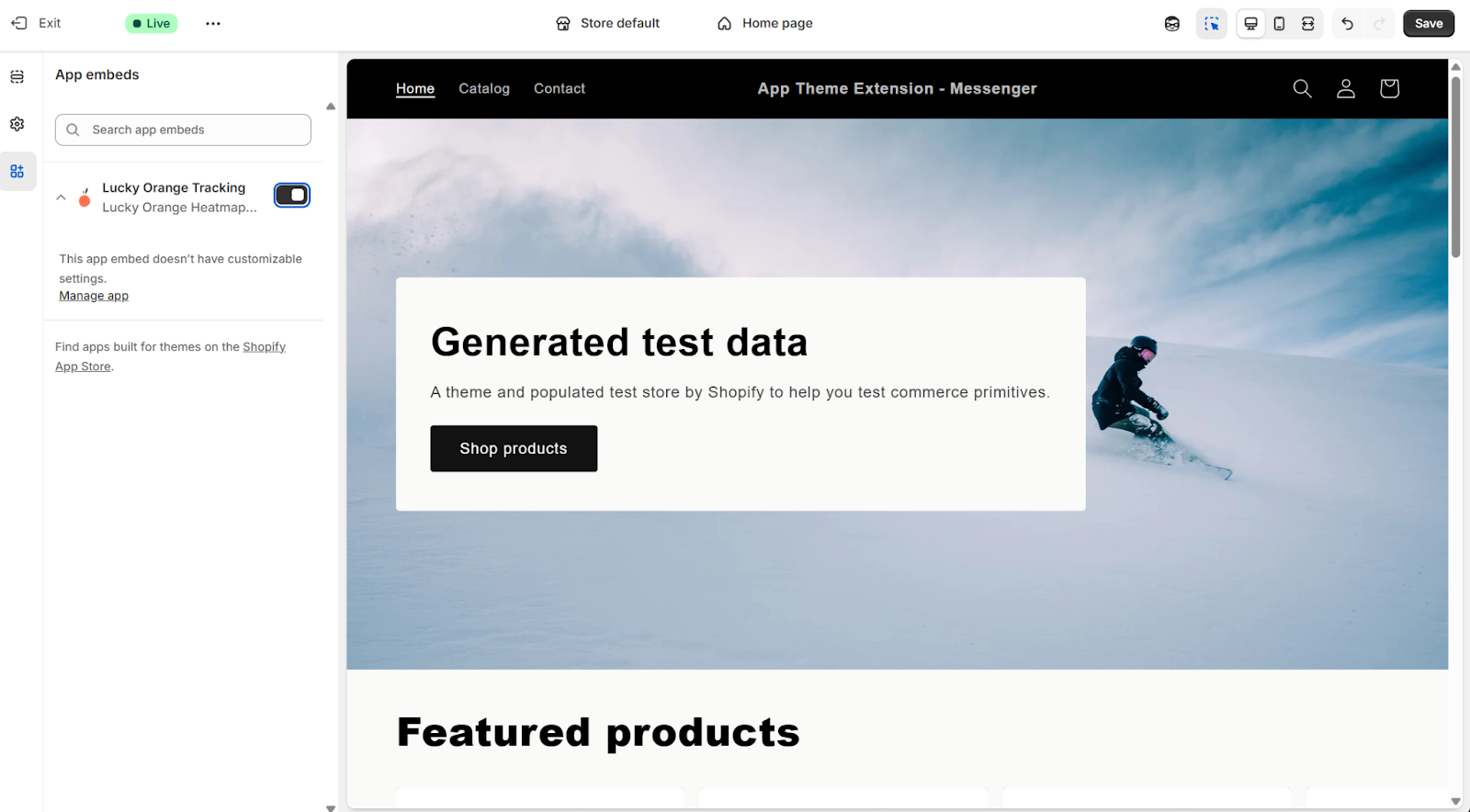
Why is this step required? Shopify requires apps using Theme App Extensions to be explicitly enabled and saved in the theme editor before they can load on your storefront.
Will this affect my theme design? No. Enabling the Lucky Orange Theme App Extension doesn't change your theme's layout, styling, or code.
What if I skip this step? Tracking won't start, and this checklist item will remain incomplete until you finish it.
What if I change themes later? If you publish a new theme, you'll need to open the new theme's editor, enable the Lucky Orange app embed, and click Save again — the same as above, just on the new theme.
Manual installation
How do I install manually?
- Copy your Lucky Orange tracking code (find your store's unique tracking code here).
- Log into your Shopify store.
- Click Online Store under Sales Channels in the main navigation.
- Select Themes; your current theme will be displayed.
- Click the Actions dropdown, located by the Customize button.
- Select Edit Code.
- Click theme.liquid under Layout.
- Find the </head> tag, near the bottom of the page. (Tip: click within the code, then use Ctrl+F / Cmd+F to search for /head.)
- Paste the Lucky Orange tracking code just before this tag.
- Click the gray Save button.
Once you click into Lucky Orange from Shopify, you'll be signed in automatically via Single Sign-On — see Logging into Lucky Orange through Shopify for how that works.