How to use the Lucky Orange Chrome Extension
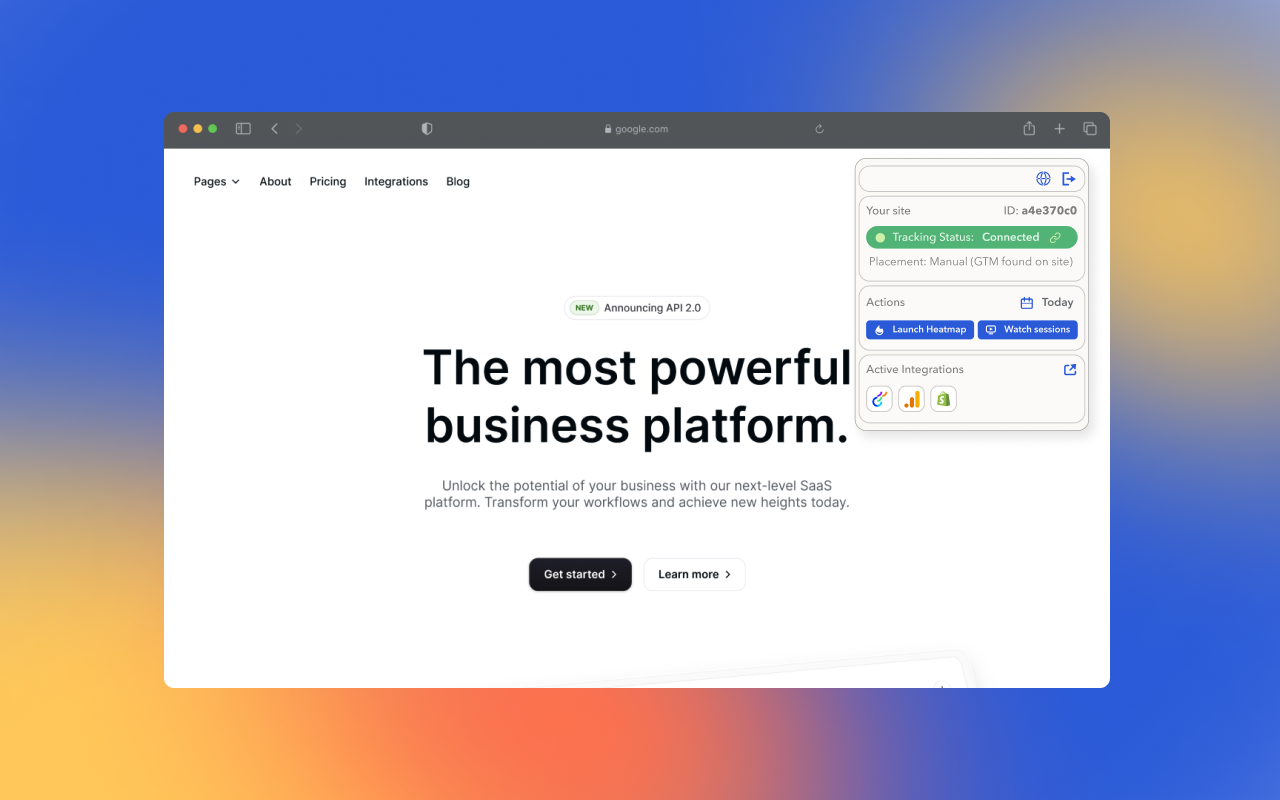
- How do I install the Lucky Orange Chrome extension?
- How do I see a heatmap of my page?
- How do I view session recordings?
- How do I check my tracking status?
- How do I see the integrations I have connected through Lucky Orange?
How do I install the Lucky Orange Chrome extension?
Step 1
Search for Lucky Orange on the Chrome Web Store.
Step 2
Click the Add to Chrome button on the upper right section of the Lucky Orange chrome extension listing.
Step 3
Log in to Lucky Orange with the same email and password you use to log in to your Lucky Orange account. If you are a Shopify merchant and you typically log in through your Shopify login, click the forgot login link and you'll be provided with a password you can use to log in to Lucky Orange. You'll use that password to log in to the Chrome extension.
How do I see a heatmap of my page?
Once you're logged into the extension, navigate to the page where you want to launch a heatmap.
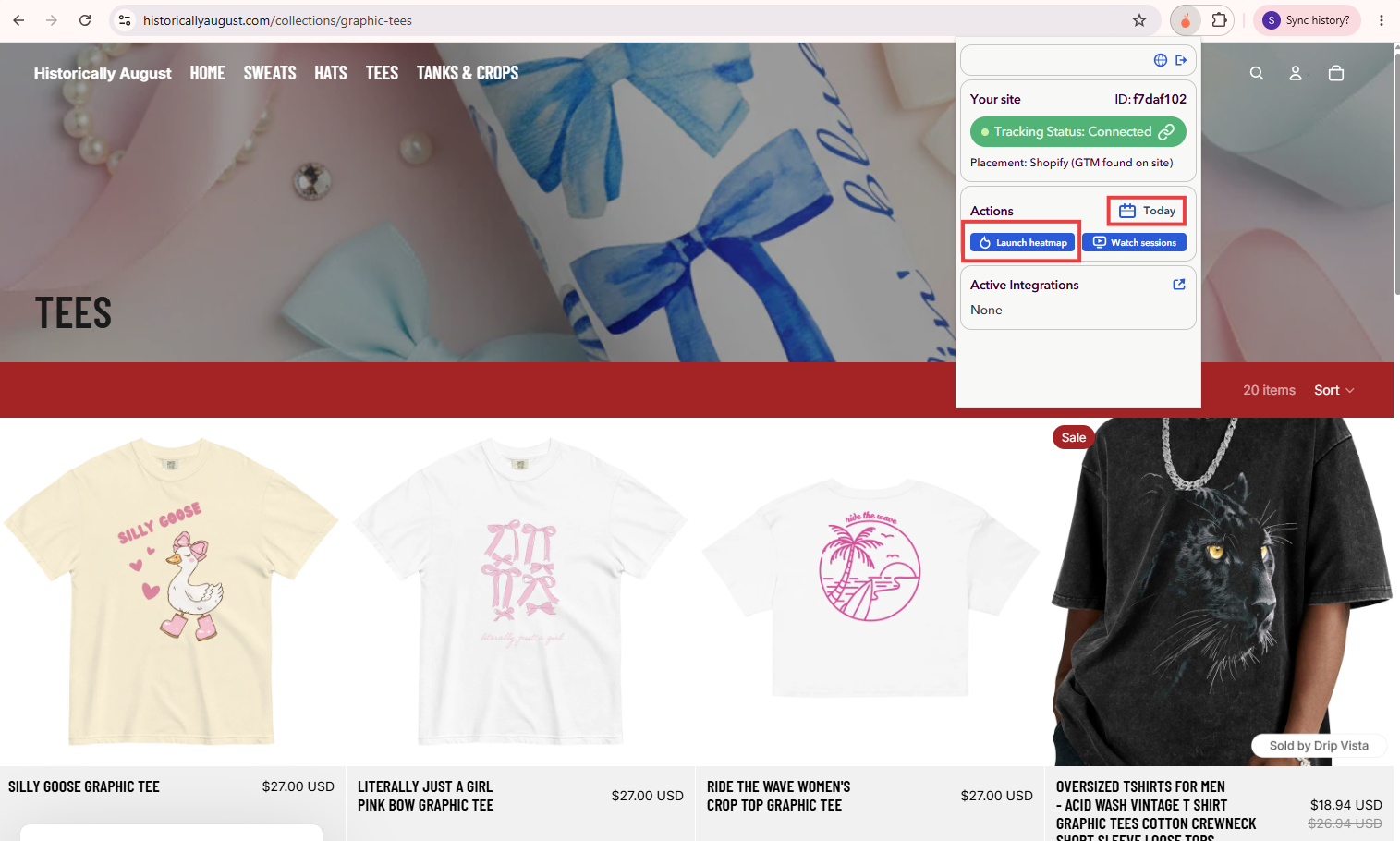
Next, set the date range for your heatmap by clicking the calendar icon next to the date picker. This will show engagement from visitors only during this timeframe.
Click the Launch heatmap button to see the heatmap of your page. This will open the Lucky Orange heatmap viewer in a separate tab, allowing you to access of the heatmap tools and types, including clicks, moves and scrolls heatmaps as well as form analytics.
How do I view session recordings?
Navigate to any page on your website.
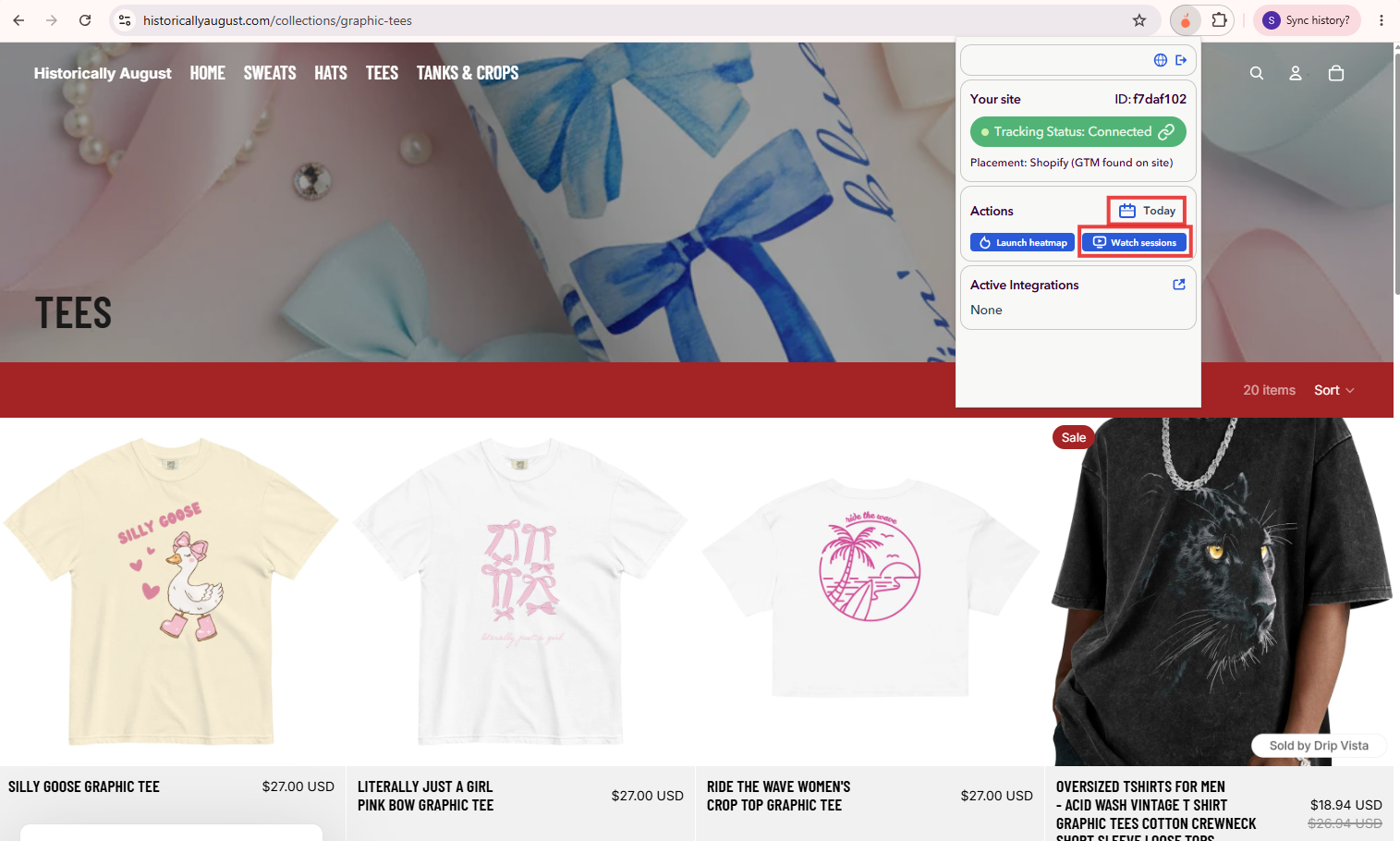
Set the date rage for your session recordings by clicking the calendar icon next to the date picker.
Choose the Watch sessions button to see session recordings for that page.
This will open Lucky Orange and take you to a filtered list of session recordings that included a visit to the page you were previously on.
How do I check my tracking status?
The tracking status card within the Chrome extension allows you to see if your tracking code is properly placed on your site. You'll see one of four possible tracking statuses:
- Tracking Status: Connected (green) - This means your Lucky Orange tracking code is properly placed on your site and is tracking website visitors.
- Tracking Status: Disconnected (grey) - This means we were unable to detect the Lucky Orange tracking code on your website. Clicking the grey bar will take you to your site settings page in Lucky Orange. For help troubleshooting your tracking code, check out the How to check if Lucky Orange was installed correctly help document.
- Tracking Status: Error (red) - This means your tracking code is properly placed, but you are no longer tracking sessions. This could be because you've reached your monthly session limit. Clicking the red bar will take you to your plan settings page in Lucky Orange. To learn more about changing your plan to add additional sessions, check out the How to change your plan help document.
- Tracking Status: Warning (yellow) - A warning status means tracking for your URL has been blocked. Contact our support team for more information
How do I see the integrations I have connected through Lucky Orange?
The Active Integrations card will show the integrations you've connected in Lucky Orange. Clicking any of the integrations shown will take you to the integrations page in Lucky Orange. To learn more about Lucky Orange integrations, visit the Integrations page on the Lucky Orange website.