Building and Viewing Funnels in your Shopify Admin
Lucky Orange's Funnels let you track how visitors move through a specific sequence of pages or actions on your site, all from inside your Shopify Admin. This doc covers three things: how to build a funnel, how to view a funnel's results, and how the prebuilt Shopify funnel works.
Building a funnel
How do I get to Funnels?
- From your Shopify Admin, find Apps in the left navigation and click Lucky Orange.
- In the expanded menu, click Funnels.
What will I see on the Funnels page?
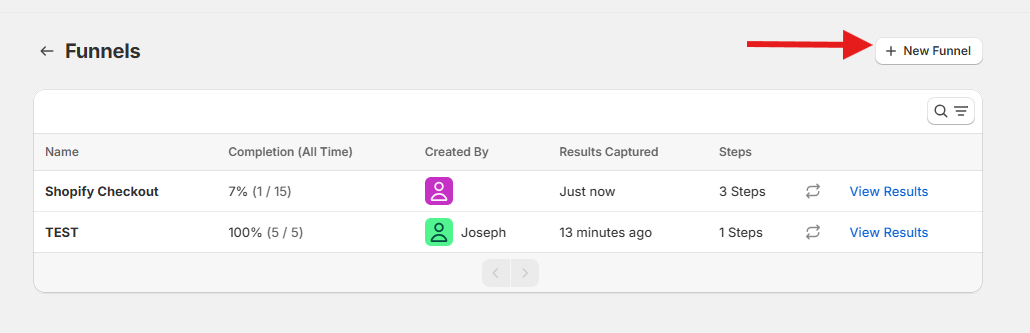
A list of all your funnels, with a column for each of the following:
- Name — the funnel's name
- Completion (All time) — the percentage and raw count of visitors who completed the funnel out of those who started it
- Created By — who created the funnel
- Results Captured — when data was last recorded
- Steps — how many steps the funnel has
Each row also has a View Results link.
How do I create a new funnel?
Click New Funnel in the top-right corner of the Funnels page.
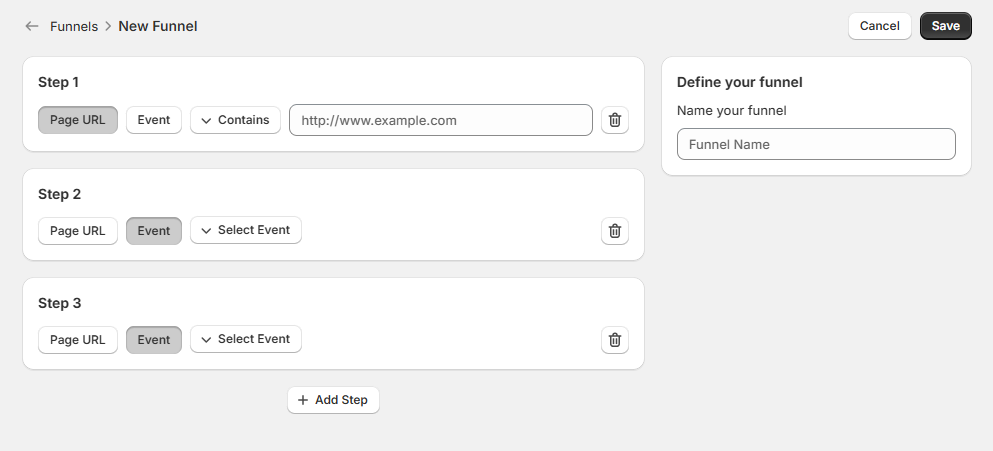
- On the right, give your funnel a name under Name your funnel.
- For Step 1, choose whether this step is triggered by a Page URL or an Event:
- Page URL — choose a qualifier (e.g. Contains) and enter the URL
- Event — choose the event from Select Event
- Click Add Step to add additional steps, repeating the same Page URL/Event setup for each. Each step (after the first) has a trash icon to delete it if needed.
- When you're done, click Save in the top-right corner (or Cancel to discard).
Viewing a funnel
How do I view a funnel's results? From the Funnels list, click View Results on any funnel.
What will I see on the Summary tab?
At the top, a summary sentence tells you how many visitors started and completed the funnel over the selected date range (e.g. "11,975 visitors started your funnel and 200 completed it between Mar 16 - Apr 15"). You can change the date range using the button in the top-right of this card, and switch between the Summary and Visitors tabs.
Below that, three cards give a quick snapshot:
- Completion Rate — percentage and count of visitors who completed the funnel (e.g. 2%, 196 / 11,975)
- Largest Drop-Off — the biggest percentage drop between two steps, and which steps it happened between (e.g. 98%, Step 1-2)
- Top Day — the day with the most completions, and how many (e.g. Thursday, 56 Completed)
Below the cards, each step in the funnel has its own line chart showing visitor count over time for that step, so you can see trends day-to-day rather than just a single total.
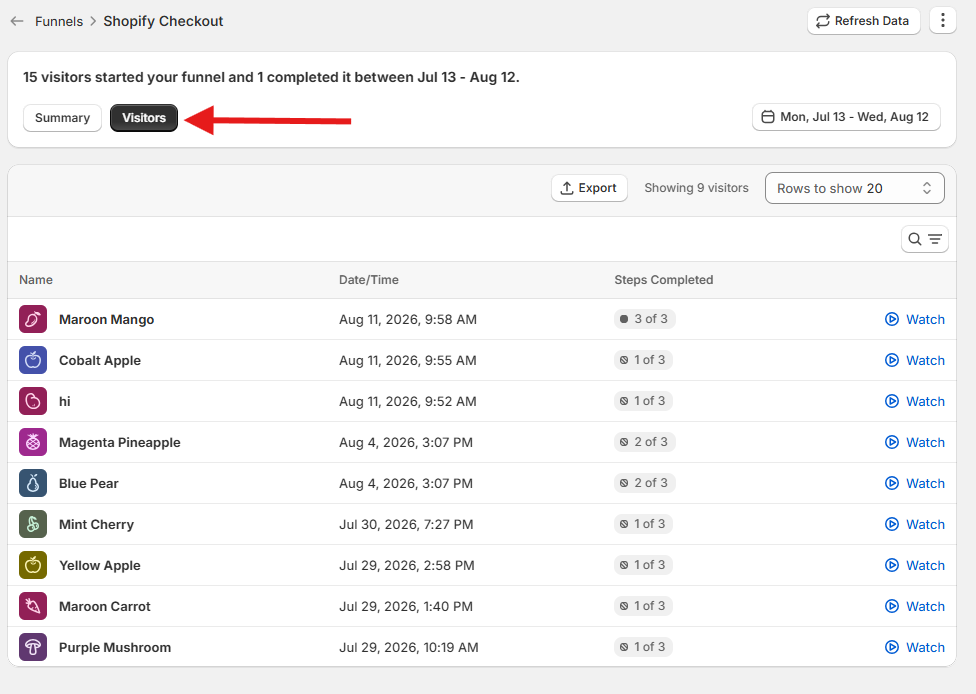
How do I view individual visitors who went through the funnel? Click the Visitors tab. Each row shows:
- Name — the visitor's name
- Date/Time — when they went through the funnel
- Steps Completed — how many of the funnel's steps they completed (e.g. "2 of 4")
- Watch — a link to watch that visitor's session recording
The prebuilt Shopify funnel
Shopify's privacy policy prevents non-Shopify Plus merchants from watching Session Recordings or viewing Dynamic Heatmaps of the checkout page. However, Lucky Orange includes a set of preloaded Events that let you track visitors as they start, move through, and complete checkout — regardless of your plan.
To make this easy, Lucky Orange automatically creates a default funnel for every merchant called Shopify Checkout. You'll see it in your Funnels list from day one — no setup required. It tracks this visitor journey:
- Step 1: Product Viewed
- Step 2: Cart Item Added
- Step 3: Ordered
Can I customize the Shopify Checkout funnel? Yes. If you want to track additional checkout-specific moments — like Checkout Started or Payment Information Submitted — you can edit the Shopify Checkout funnel the same way you'd edit any funnel (see Building a funnel above): open it from the Funnels list, add a new step, set its type to Event, and select the event you want to track.
One thing to keep in mind: Conversion Funnels only count visitors who completed the steps in the exact order specified. If you add checkout events, make sure Ordered stays as the final step so your funnel still reflects the correct sequence.